
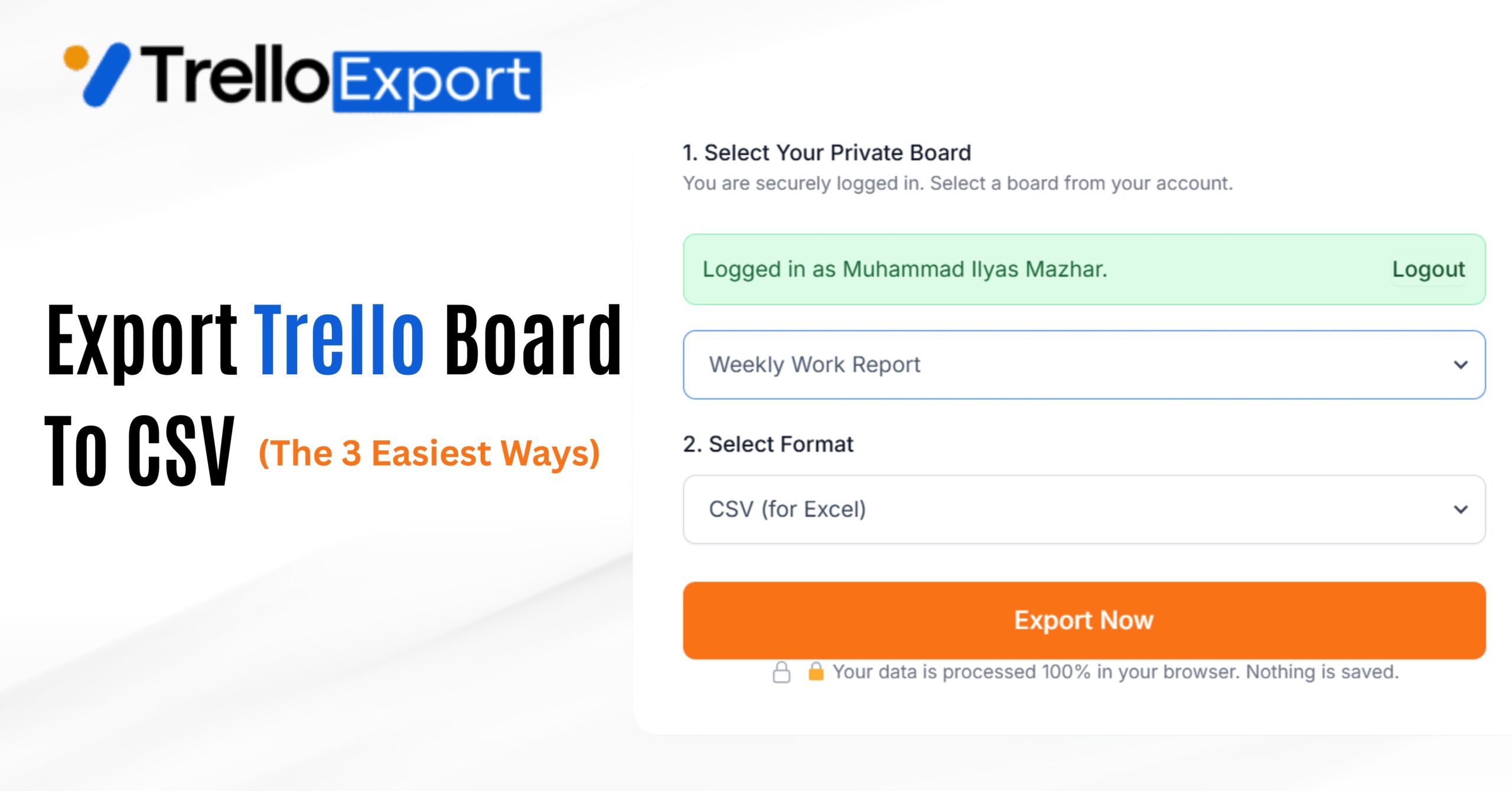
Do you want to export your Trello Boards and cards in Excel spreadsheet? But there is no free easy method availble in Trello Because!
Trello does not have a simple “Export to Excel” button.
Tha’s why I have create the easy option tools. In this article, I will guide you how to export a trello board to excel. I will share a free method that works for everyone (even if you don’t have Trello Premium).
Why You need to Export Trello Data in to Excel?
Moving your data to Excel helps you to do things that Trello cannot do:
Method 1: The Easiest Way (Free Tool)
This is the fastest method. It works for Public and Private boards, and you don’t need to pay for Trello Premium.
I have built a free tool called TrelloExport.com. It converts your Trello board into Excel file.
Step-by-Step Instructions:
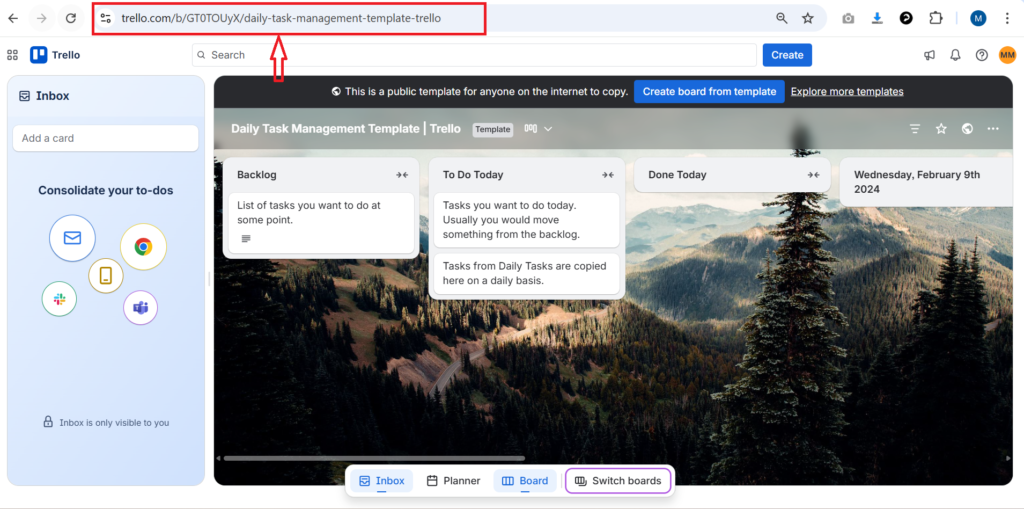
Copy Your Board Link
Go to the Trello board you want to save. Copy the website link (URL) from the top of your browser.
Paste into the Tool
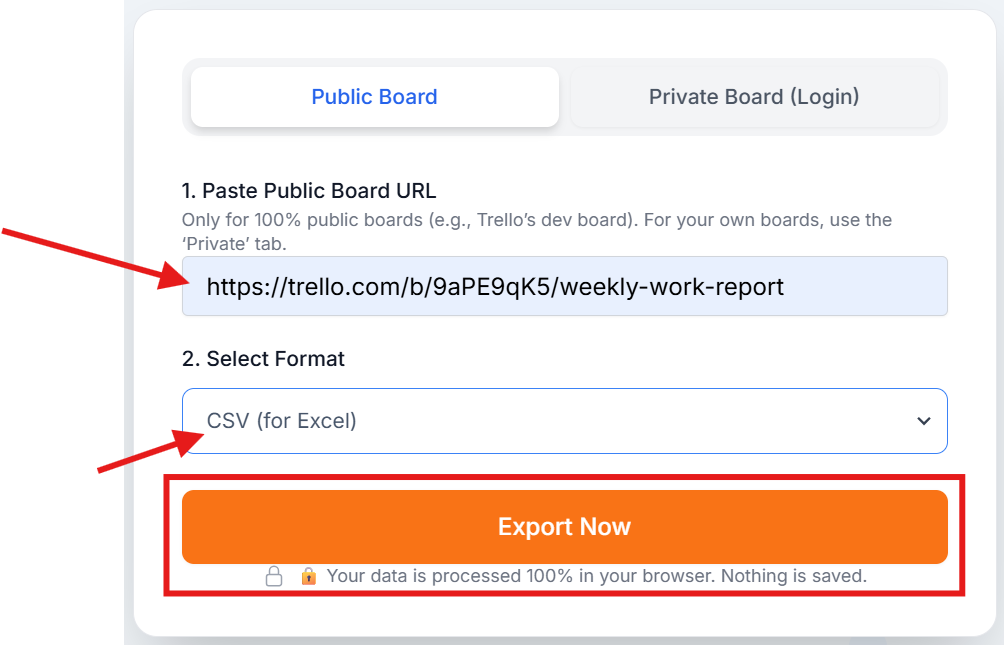
Go to TrelloExport.com. Paste the link into the box on the homepage.
Select “CSV (for Excel)”
In the dropdown menu, choose “CSV (for Excel)”.
Click “Export Now”
Click the orange button. Your file will download in seconds.
Open in Excel
Method 2: Using Trello’s Built-in Feature (Premium Only)
If you pay for Trello Premium, you can use their official export feature.
This will download a CSV file. You can open this file in Excel.
Which method is better?
Method 1 (Our Tool) is better because it organizes the data into “Smart Columns” (like putting labels in their own column), which makes the Excel sheet cleaner and easier to read.
How to Format Your Data in Excel
When you open your file in Excel, here are two quick tips to make it look like a professional report:
To keep your headings (like “Card Name”) visible when you scroll:
- Go to the View tab in Excel.
- Click Freeze Panes.
- Select Freeze Top Row.
To sort your tasks (for example, by “Due Date”):
- Select the top row (headers).
- Go to the Data tab.
- Click Filter. (Now use small arrows to sort).
Summary
Exporting trello board to excel is the best way to analyze your work.
Stop copying data manually. Use the tool and save hours of work.
Frequently Asked Questions (FAQ)
Can I export Trello to Excel for free?
Yes. You can use TrelloExport.com to export any board to an Excel-compatible CSV file for free. You do not need Trello Premium.
Will my images be in the Excel file?
No. Excel cells cannot hold Trello card images directly. However, our export includes a link (URL) to the card, so you can click it to see the images on Trello.
Can I export comments?
Exporting comments makes the Excel file very messy and large. Our tool focuses on the main data: Card Names, Lists, Descriptions, Dates, and Members.
Is it safe to use the free tool?
Yes. We use Trello’s official security system (OAuth). We never see your password and we do not save your board data. It is processed in your browser.