
Have you ever found a great public Trello board (like a roadmap or a resource list) and wished you could save it to Excel?
🔒 The Problem: The “Login Wall”
Usually, if you try to export anything from Trello, the first thing it asks is: “Please Log In.”
But what if you don’t have an account? Or what if you just don’t want to connect your personal account to a random board?
In this article, I will guide you how to export a Trello board to Excel or CSV without logging in. This method works perfectly for any Public board witour required login.
The “No Login” Method: How it Works
Mostly tools ask your email, password, or API key just to do a simple task. I think that is unnecessary for public bords.
If a Trello board is “Public” (meaning anyone on the internet can see it), you should be able to download it witout login.
That is why I built the Trello Export Tool. It is the only tool that allow you to export trellow publick data in any format.
Find Your Public Board URL
First, go to the Trello board you want to save. Check the top of the board. If it says “Public”, you are good to go.
Copy the full link from your browser’s address bar.
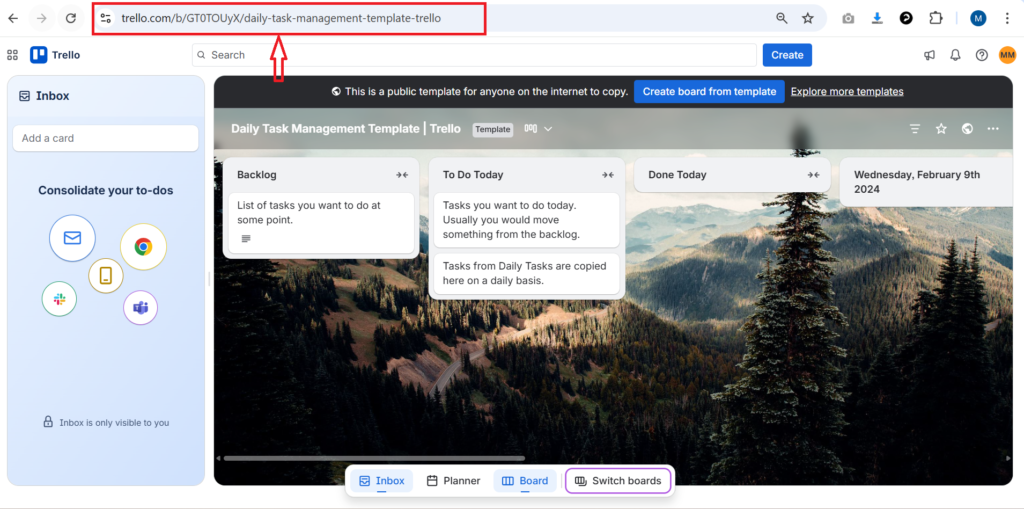
Open TrelloExport.com
Go to: TrelloExport.com. Once there, verify the correct tab:
Look for the “Public Board” and “Private Board” tabs.
Make sure you are on the “Public Board” tab.
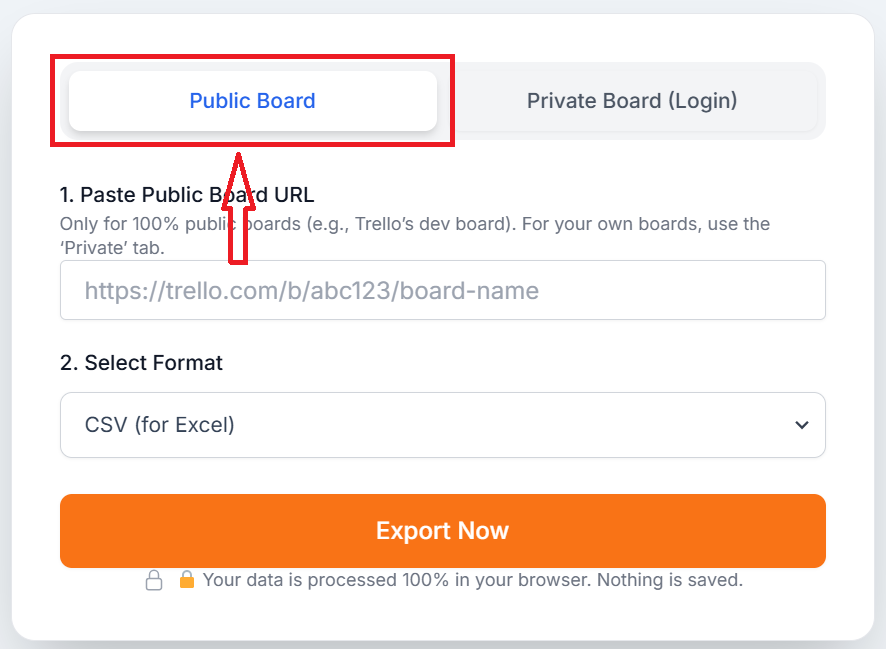
Paste and Export
Paste your link into the box. Then, follow these two simple actions:
Choose “CSV (for Excel)”.
Click “Export Now”.
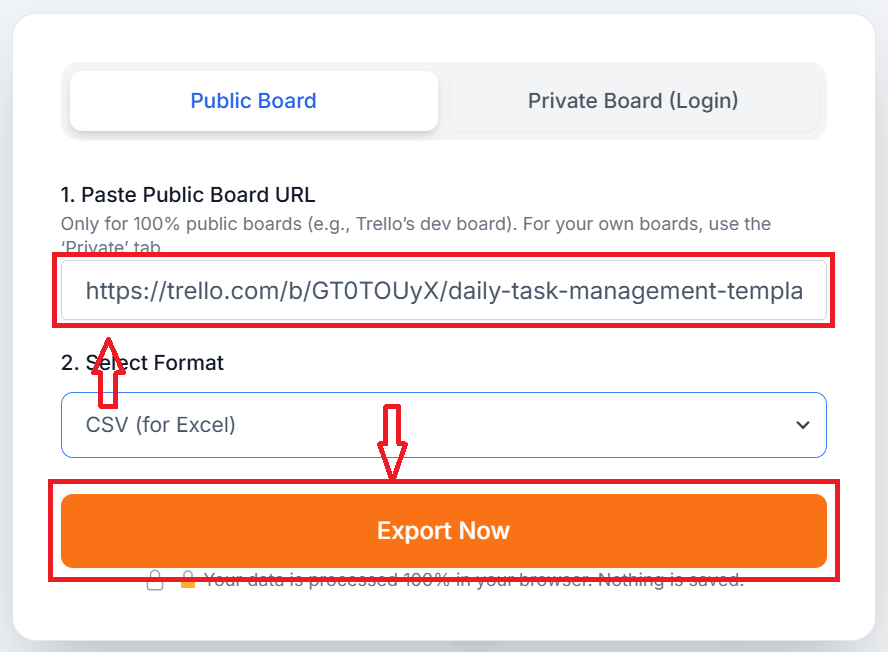
The file will download to your computer immediately. No signup forms. No “Connect your account” buttons. Just the data.
Why “No Login” is Safer (Privacy Note)
Security is a big deal. When you use tools that require a login, you are often giving them access to all your boards. Our “No Login” feature protects you because:
Zero Access
We don’t ask for your password, so we strictly cannot touch your private data.
Anonymity
You can download public resources anonymously without anyone knowing who you are.
No Tracking
We never save your email address because we simply never ask for it.
Questions? Answered.
Can I export a PRIVATE board without logging in?
No. Private boards are protected by Trello’s security. To export a private board, you must prove you have permission using the “Private Board” tab on our tool, which uses Trello’s official login system.
Does this work for “Team Visible” boards?
If a board is visible to a “Team” but not the “Public,” you will need to be logged in as a team member to export it. The “No Login” method only works for boards that are 100% public.
How do I open the file in Excel?
The file you download is a CSV. You can simply double-click it to open it in Microsoft Excel, Google Sheets, or Apple Numbers. It will automatically organize the data into rows and columns.
Conclusion
Exporting data shouldn’t be hard. If you can see the board, you should be able to keep it.
Next time you find a useful public Trello board, don’t waste time creating an account just to save it. Use TrelloExport.com and get your Excel file in 3 seconds.