
If you want to save everything on your Trello board every comment, every checkbox, every history log then you need a Trello JSON export. It is the most complete backup you can get.
JSON files are great for computers, but they are very hard for humans to read. If you open one, it just looks like a confusing “wall of text” and code.
In this article, I will explain that what is Trello JSON export,and how you can download it (even on the Free plan), and how to turn that Complicated code into a clean Excel file.
How to Export Trello Board to CSV in 2025 (The 3 Easiest Ways)
What is Trello JSON Export?
JSON stands for JavaScript Object Notation. It is a way of storing data in a text file.
This is like a photograph of your board. It shows you the cards and lists, but it might miss some small details.
This is like the blueprint of your board. It contains every single detail, including things you can’t see, like IDs and logs.
Who needs this?
- Developers: To move data to another software.
- Admins: To keep a 100% complete backup file.
- You: If you want to make sure you never lose your data.
Method 1: How to Export JSON from Trello (The Easy Way)
The good news is that Trello allow us to export the JSON file with free version. You don’t need to pay for Premium.
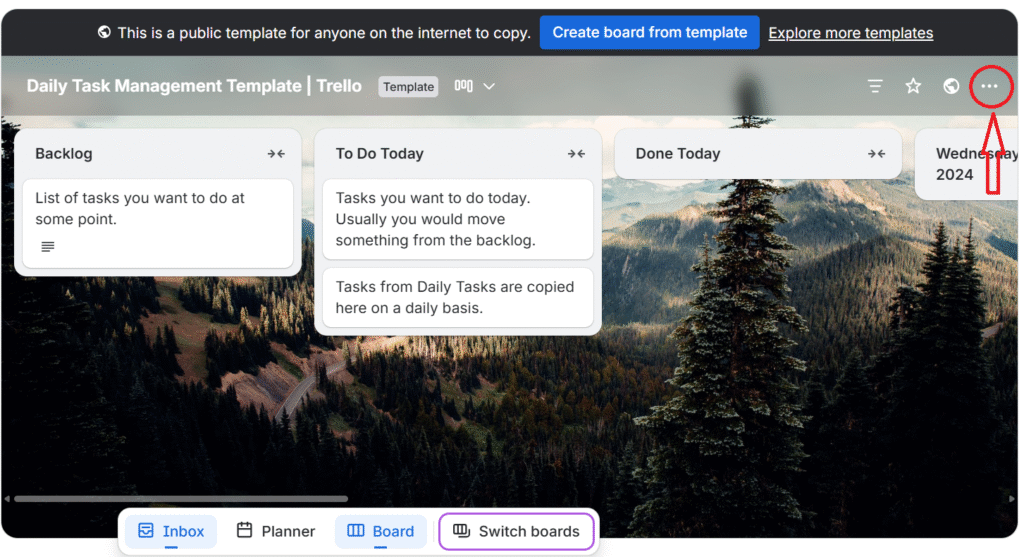
Open Your Board Menu
Open your Trello board. Click the three dots (…) in the top-right corner to open the menu.
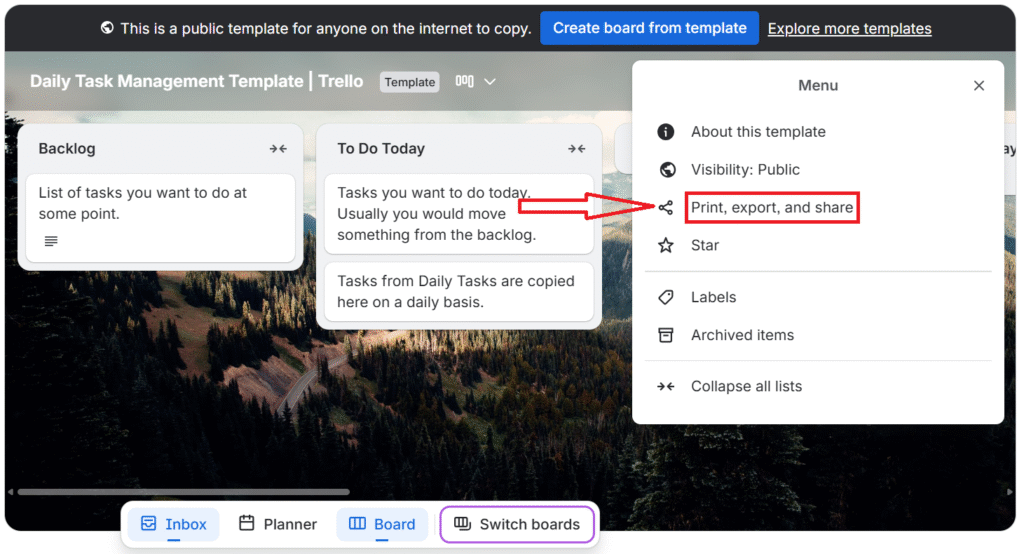
Select “Print and Export”
In the menu list, click on “Print, export, and share option”.
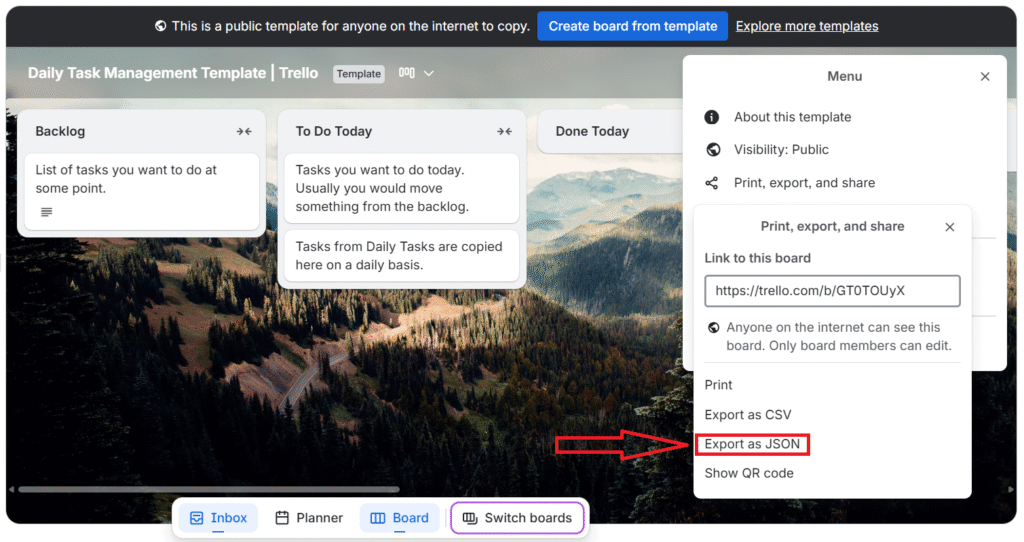
Click “Export as JSON”
You will see the option that says “Export as JSON”. Click it.
Save the File
Your browser will open a new tab filled with code. It will look messy. Just Right-Click anywhere on the page and choose “Save As…”. Save the file to your computer.
❌ The Problem: “I Can’t Read This File!”
Now you have your JSON file. But when you open it, it looks like this:
You cannot send this to your boss. You cannot open this in Excel. It is just code. So, how do you make it readable?
The Solution: Convert JSON to CSV (No Coding)
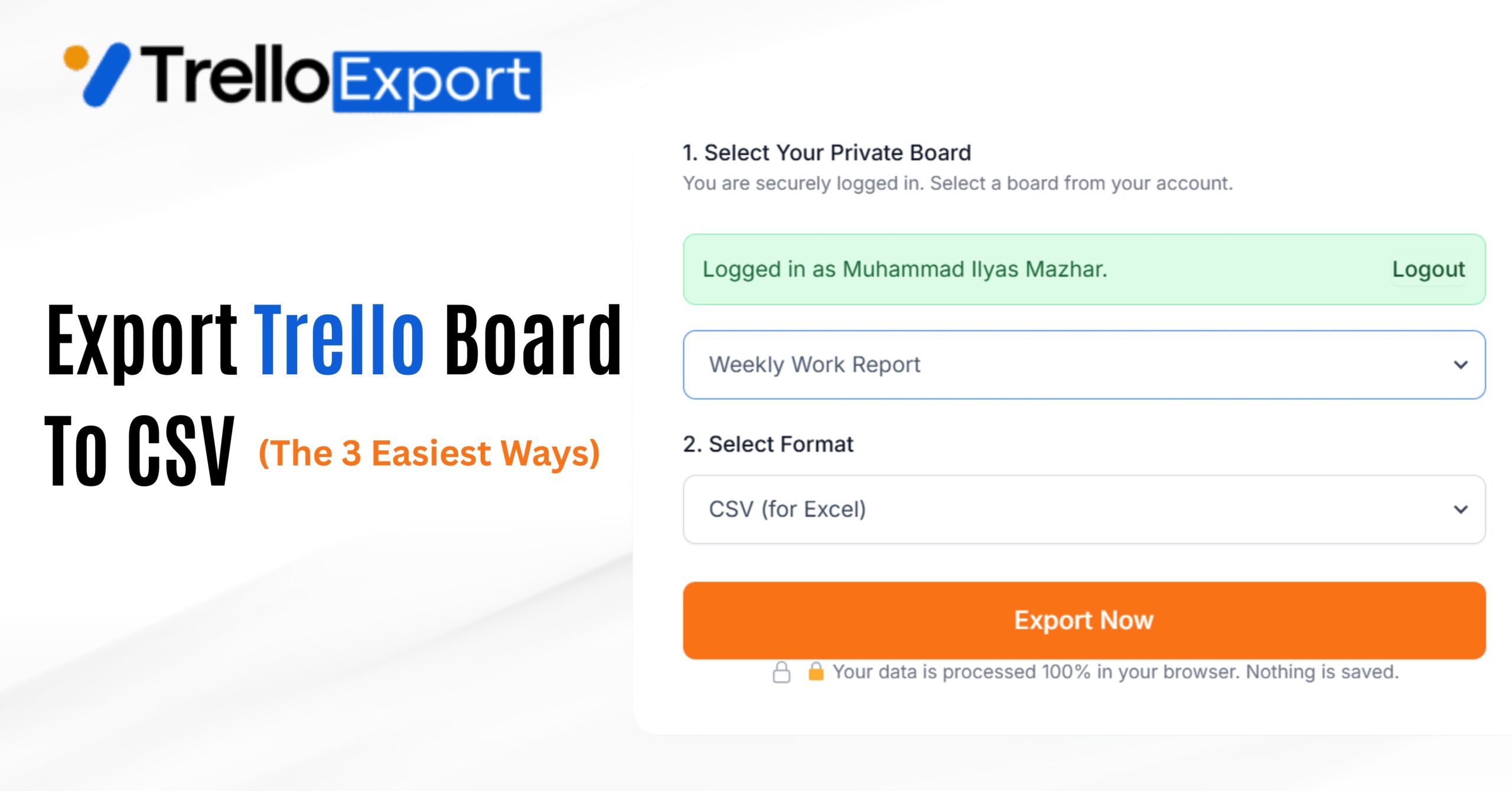
If you just want to read your data in Excel, you don’t need to learn code. Instead of fighting with the JSON file, use our free tool.
- ✓ Copy your Trello Board URL.
- ✓ Go to TrelloExport.com.
- ✓ Paste the URL and click “Export Now”.
Our tool does all the hard work in the background. You get a file that opens perfectly in Excel.
Method 2: The Developer Way (Using Trello API & Python)
If you are a developer and you want to write a script to get this data, you can use the Trello API and a simple Python script.
Get Your API Key
Login to Trello and go to https://trello.com/app-key. Copy your API Key and generate a Token.
Download JSON Data
Open your terminal and run this command (replace with your Key and Token):
Use Python to Convert to CSV
Save the following code as trello_json_to_csv.py in the same folder as your JSON file. Run it using python trello_json_to_csv.py.
import json
import csv

# 1. JSON file load karein
try:
    with open('trello_dump.json', 'r', encoding='utf-8') as f:
        board_data = json.load(f)
    print("JSON file successfully loaded.")
except FileNotFoundError:
    print("Error: File not found.")
    exit()

# 2. Lists ka map banayein (ID -> Name)
lists = {lst['id']: lst['name'] for lst in board_data['lists']}

# 3. CSV file taiyar karein
csv_filename = 'trello_export.csv'
try:
    with open(csv_filename, 'w', newline='', encoding='utf-8') as csvfile:
        fieldnames = ['Card Name', 'List Name', 'Description']
        writer = csv.DictWriter(csvfile, fieldnames=fieldnames)
        writer.writeheader()

        # 4. Har card ko loop karein
        for card in board_data['cards']:
            if not card['closed']:
                list_name = lists.get(card['idList'], "Unknown")
                writer.writerow({
                    'Card Name': card['name'],
                    'List Name': list_name,
                    'Description': card['desc']
                })

    print(f"Success! Data exported to {csv_filename}")

except Exception as e:
    print(f"An error occurred: {e}")
Conclusion
Trello’s JSON export is great for full backups and developers. But for daily use, it is too hard to read.
- 💻 Use JSON if: You are a developer or need a technical backup.
- 📊 Use CSV if: You want to view your data in Excel or make reports.
Want the easy way? Skip the code and use our tool.
Stop copy-pasting and start analyzing your data.
Click here to export your Trello board in 3 seconds for free.